

Appearance
Connect to NutrixPOS
This page demonstrates the process of connecting NutrixHub to NutrixPOS instance so that you can view sales, inventory & manage your restaurant or retial through NutrixHub dashboard.
1. Create service account on Zitadel
Login to nutrix sso service dashboard https://sso.nutrixpos.com/ and create a service account.
From the users panel choose service user and then press on the + New button to add a new service account, as shown in the following picture
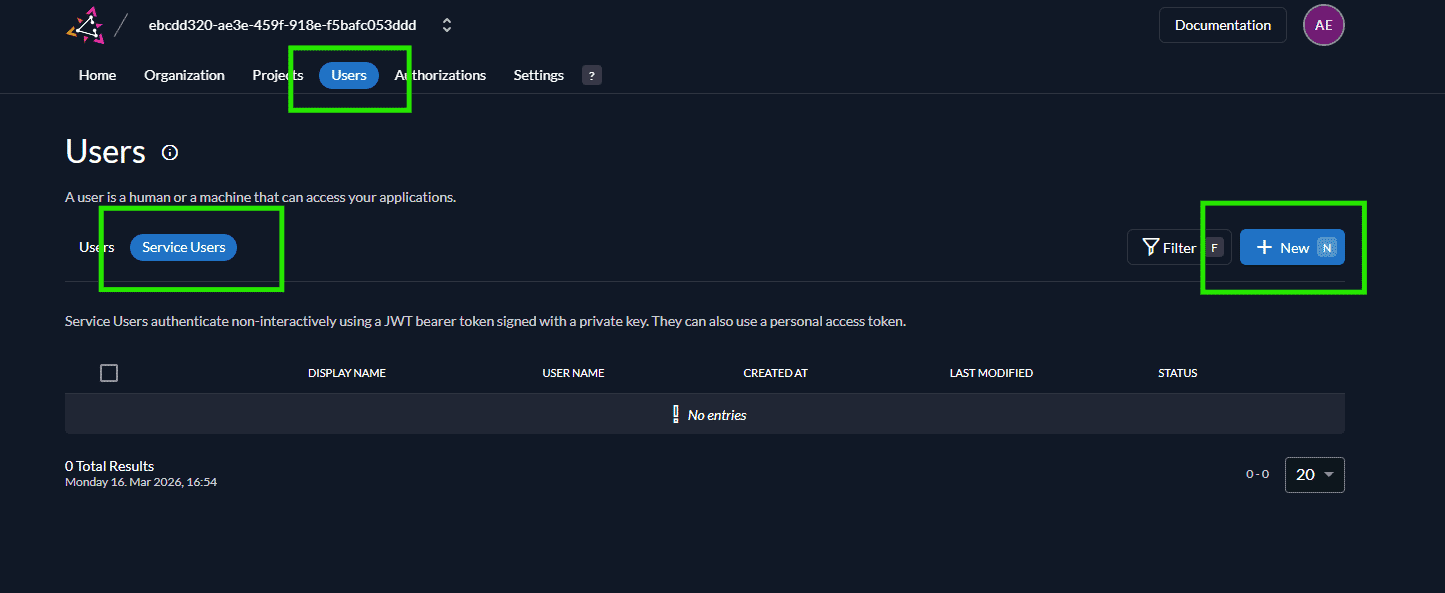
In the User Name and Name, just right the branch name so that you can identify the source of the sales and inventory items when pushed.
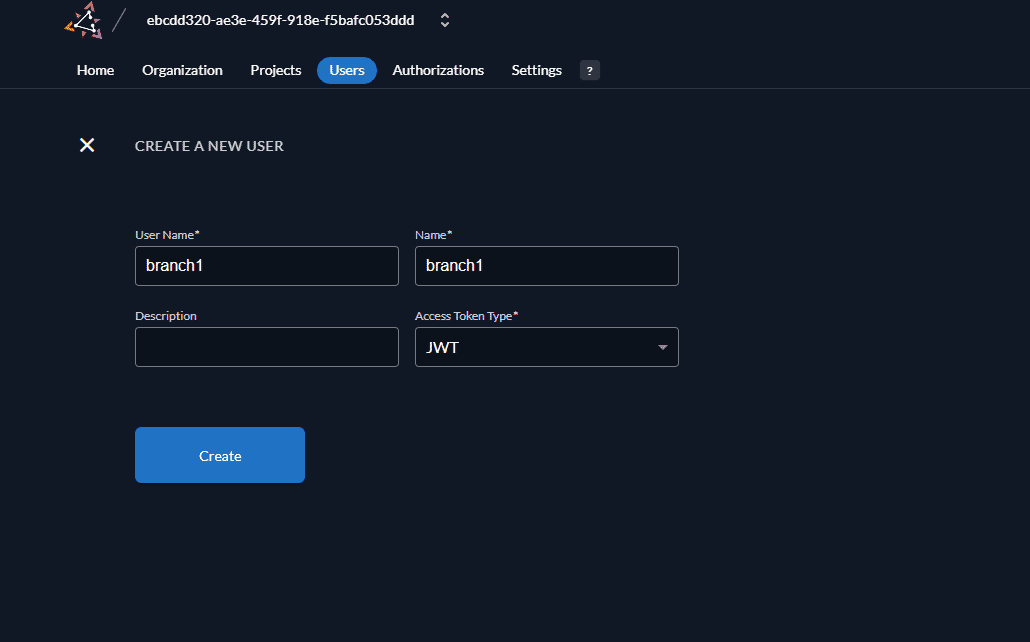
2. Generate Personal Access Token
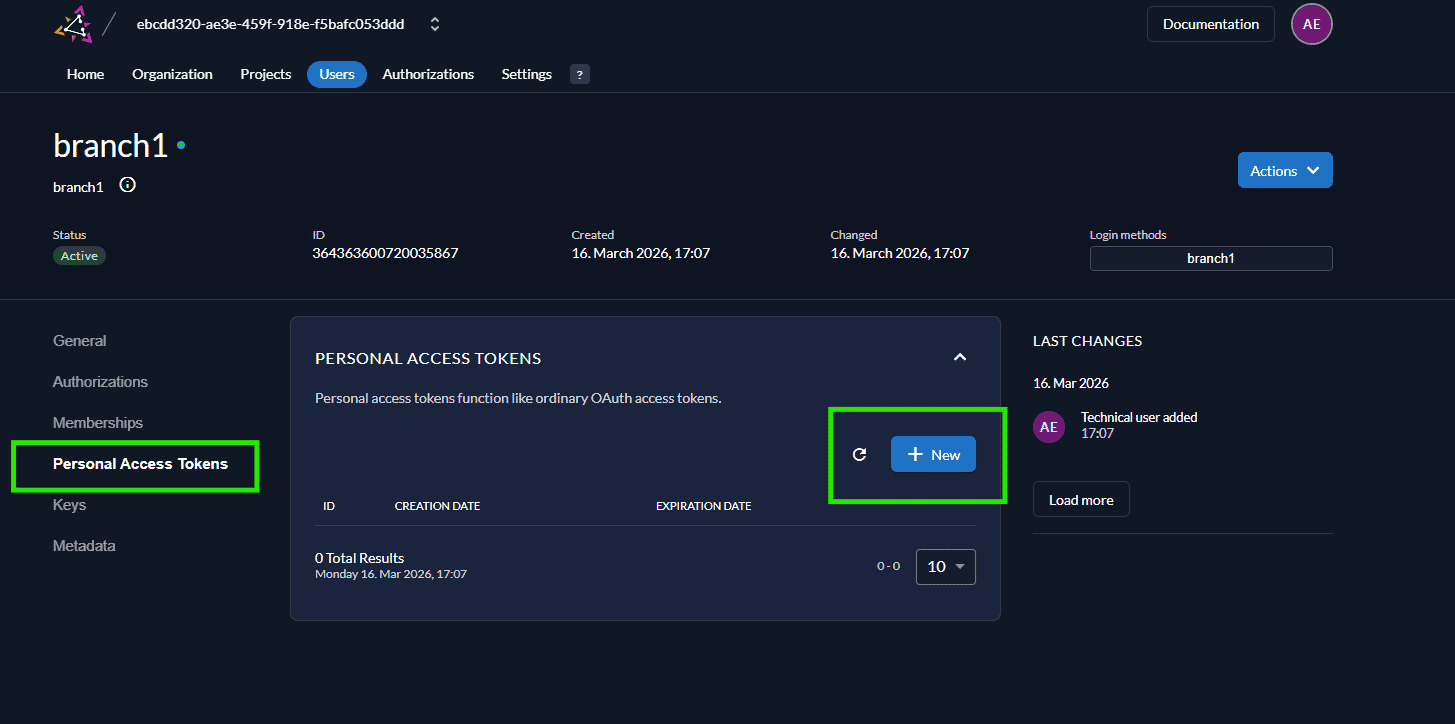
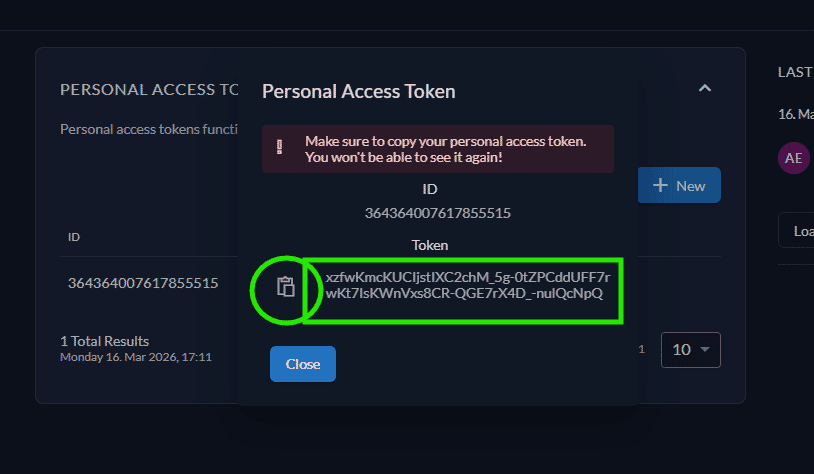
Now in the new user dashboard, open the Personal Access Tokens panel and then press on + New to create a new token, which will be then used to connect to NutrixPOS. just make sure to save the token when created
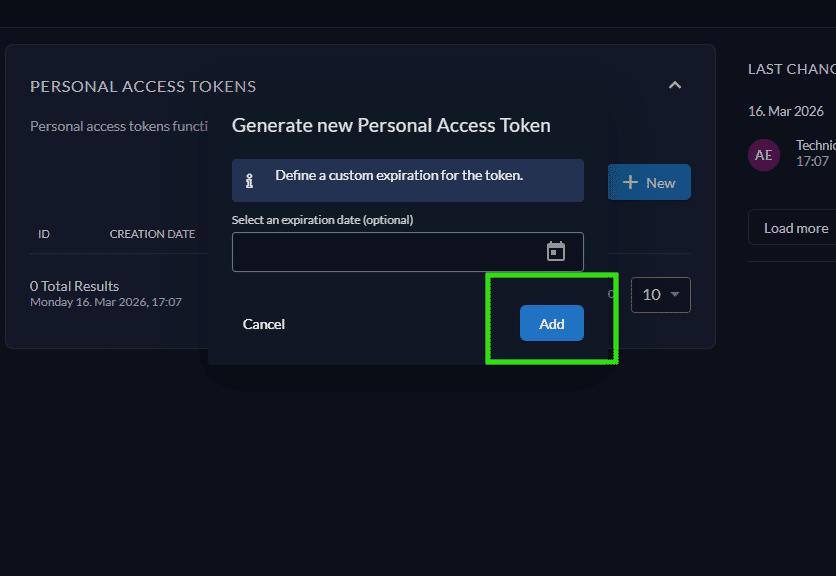
Make sure to copy the newly created token !
3. Configure NutrixPOS
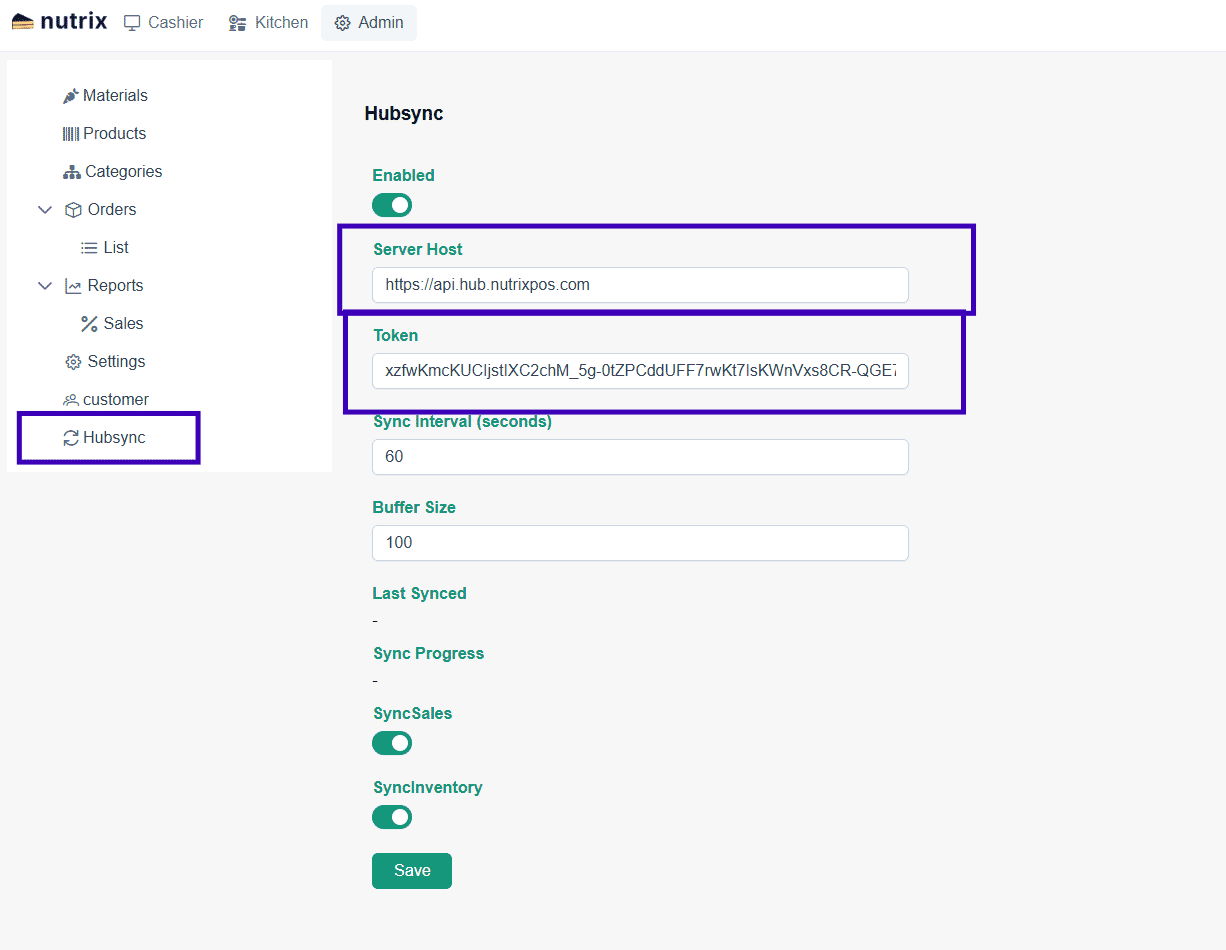
Open NutrixPOS Admin > Settings dashboard and then add the token inside the HubSync settings in the Server Host, write https://api.hub.nutrixpos.com and just paste the copied token from the previous step to the Token field. and keep the defaults as shwon in the screenshot then click Save.
Congratulations ! you've just connected your NutrixPOS instance to NutrixHub, now you can observe sales reports and more pushed from your restaurant/retail into the NutrixHub dashboard.
For more information about the features per subscription type kindly check NutrixHub Pricing